
To Begin Guiding Kindrêd Community Classes
(15 Classes are to be led by YOU 🤩 with at least 2 attendees: friends, family and/or Kindrêd Community members, and/or other students-in-training.)
Step 1
Review your requirements for certification (found in LESSON-0):
Participate in a minimum of 15 LIVE hours of classes with the founder of Kindrêd, Jesh de Rox, or another senior teacher. These can be accumulated through any combination of Facilitator Training, Masterclasses or Community Classes. (3 of 12 Teacher Clinics are required.)
Participate in a minimum of 5 Masterclasses (live or recorded)
A. Guide for Teaching on Zoom
B. Euphoria Sequence Overview
C. Designing Community Classes
Additional recordings can be found in the Kindrêd Community Library. Live Masterclasses are listed on the Community Schedule when available.
Step 2
If you feel you are ready - EEK! 😬 - or at least need to begin this part of the journey 🤩, you MUST send us an email with a request to begin this process: hello@feelkindred.com
We will provide you with your own unique schedule link so that you can create your own classes on the calendar. (NOTE: Without this link, you will NOT be able to add any classes.)
Step 3
Follow these simple instructions.
The following image is an example of the Kindrêd Community Calendar.
IMAGE 1
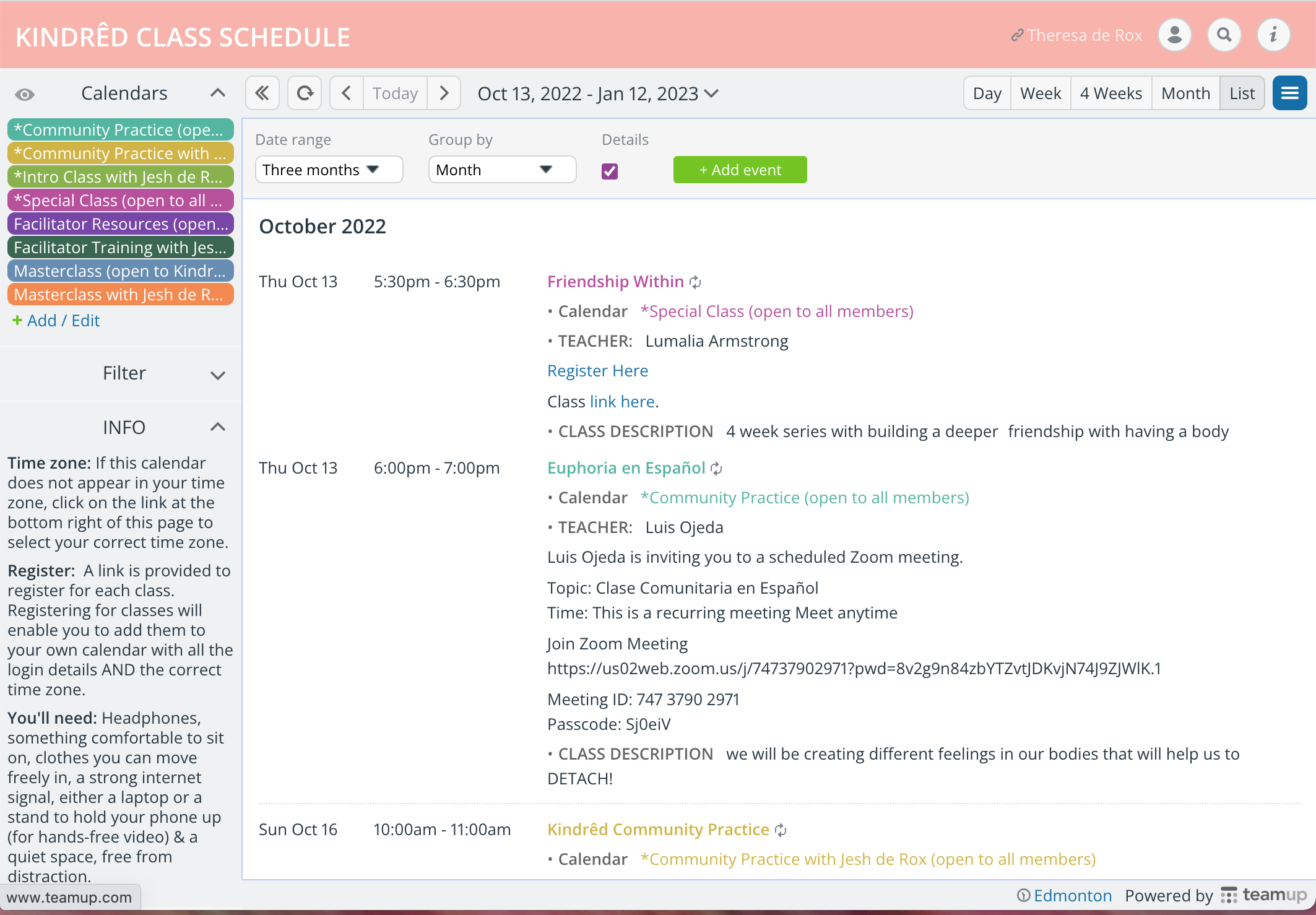
You can see THERESA’S NAME is on the top right, next to the profile icon.
This is the link I use to add MY CLASSES to the schedule. You will have your own unique hyperlink to the schedule via the platform TeamUp. (You can see the words "Powered by TeamUp" in the bottom right-hand corner)
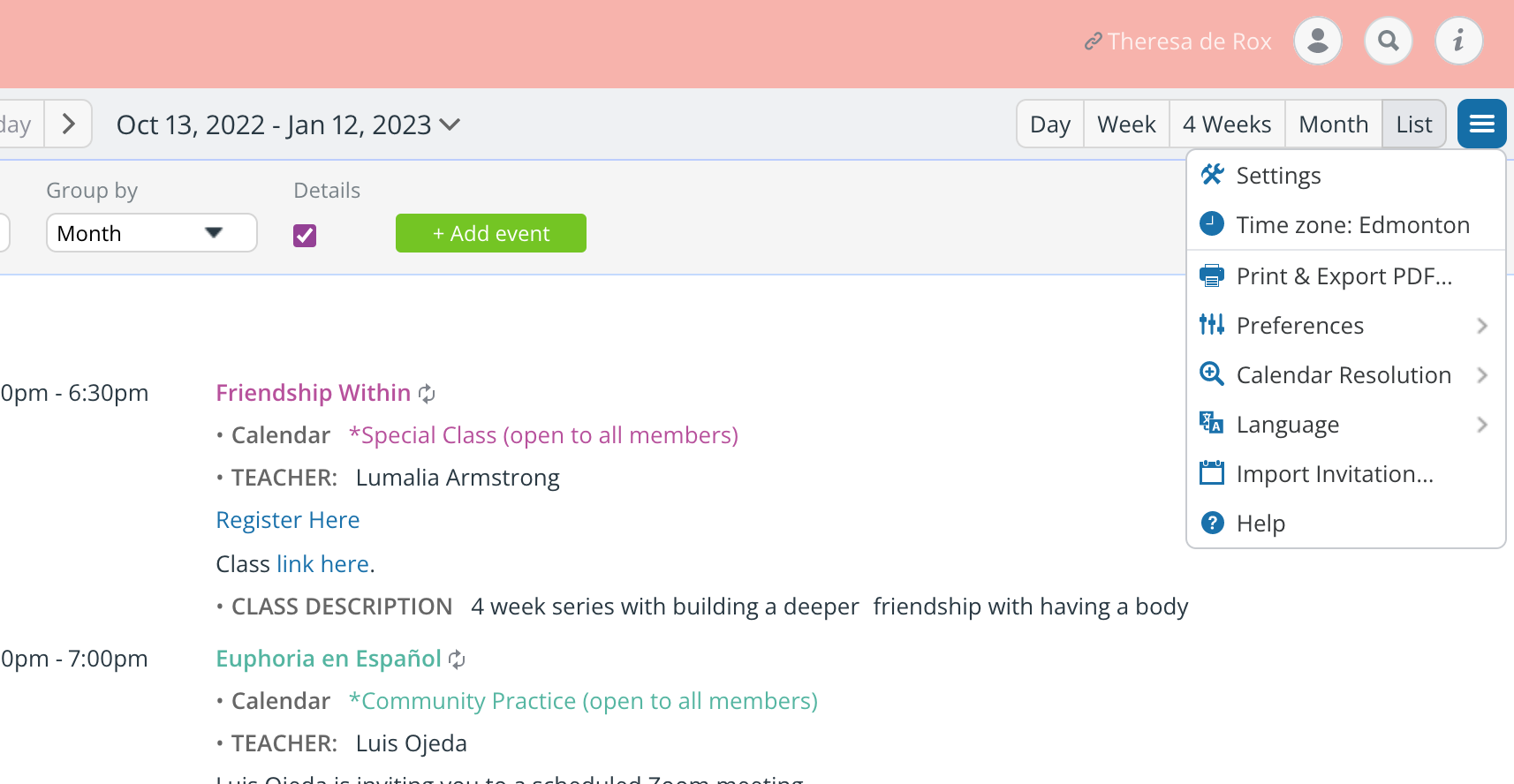
NOTE: To ensure that the classes I add reflect my time zone, I click on the 3 bars icon (in blue - FAR RIGHT)
You can see that I have chosen my Time Zone to be "Edmonton" because that is city closest to my time zone. You can change your time zone so that your classes reflect your own time zone. (You might have to refresh your screen once you have selected your time zone so that the correct time zone shows up at the bottom right-hand corner of your screen.)
NEXT, click on + ADD EVENT
(the green button toward the centre of the screen)
IMAGE 2
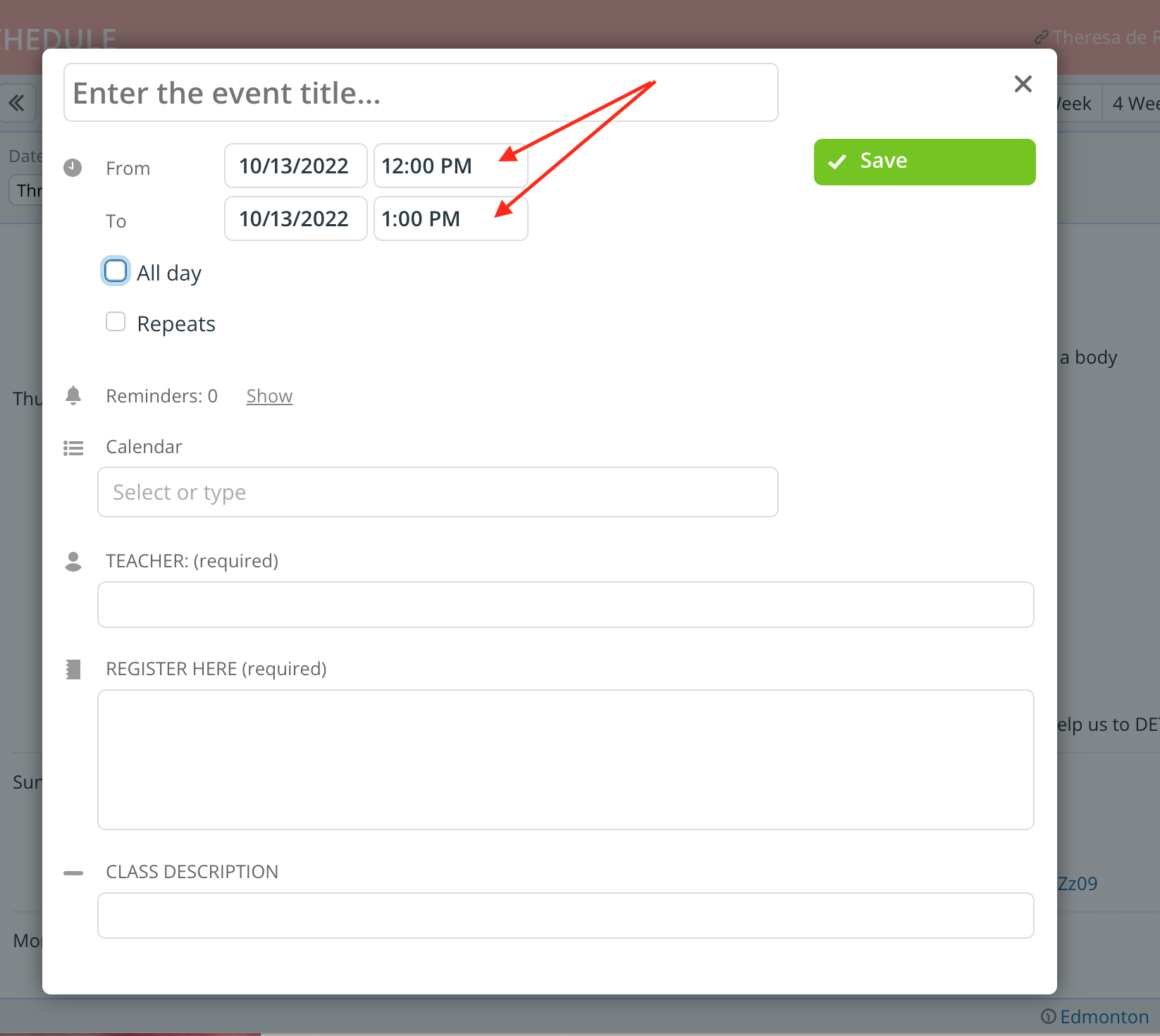
At this point, you can
Enter the EVENT TITLE, such as "Kindrêd Community Class". Some of our Senior Teachers use unique titles, but for now let's keep it simple.
Choose the date for your class. (IMAGE 3A Be sure to unselect ALL DAY, so that you can insert the correct time for your class - next IMAGE.)
Choose the time for your class. (IMAGE 3B) Please NOTE that many of our members reside in different time zones, so try to make it as accessible to other time zones as you possibly can.
IMAGE 3A
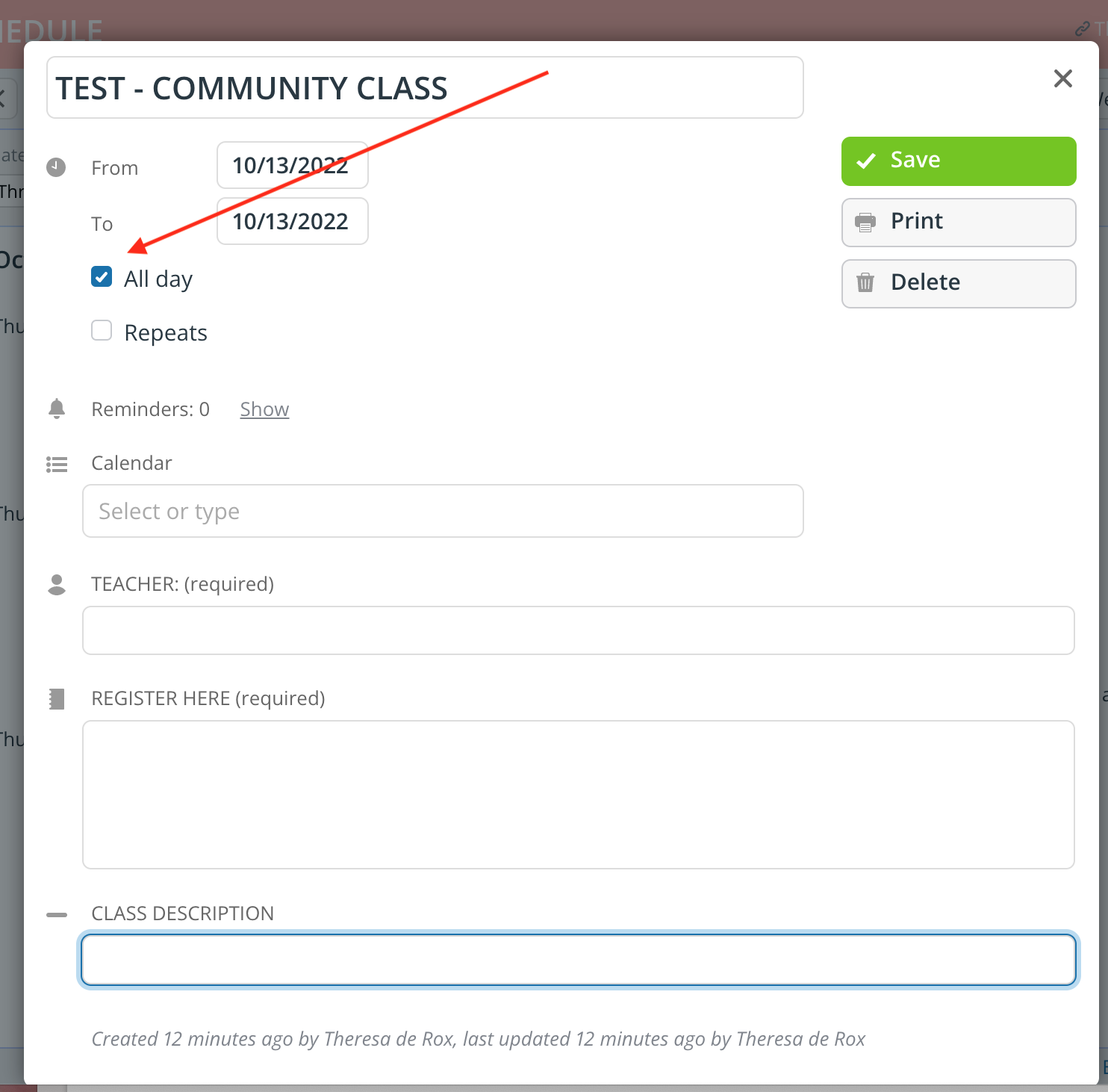
IMAGE 3B
4. THEN, SELECT Calendar
You must select *Community Class (open to all members) located at the very top of your options in teal green colour.
IMAGE 4
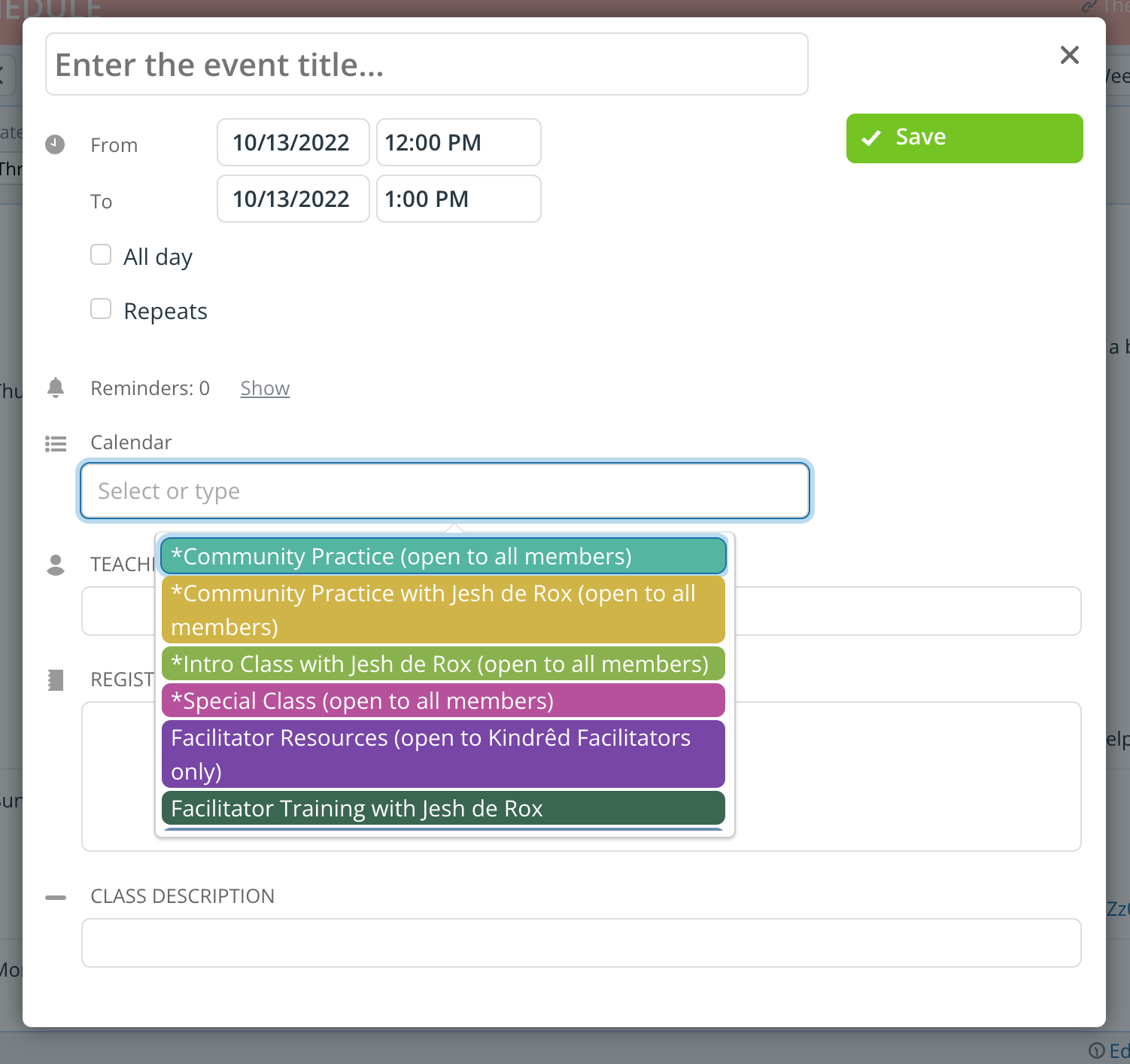
5. INSERT Your Name in the Teacher field.
This is a required field so that the community members know who is guiding the class.
IMAGE 5
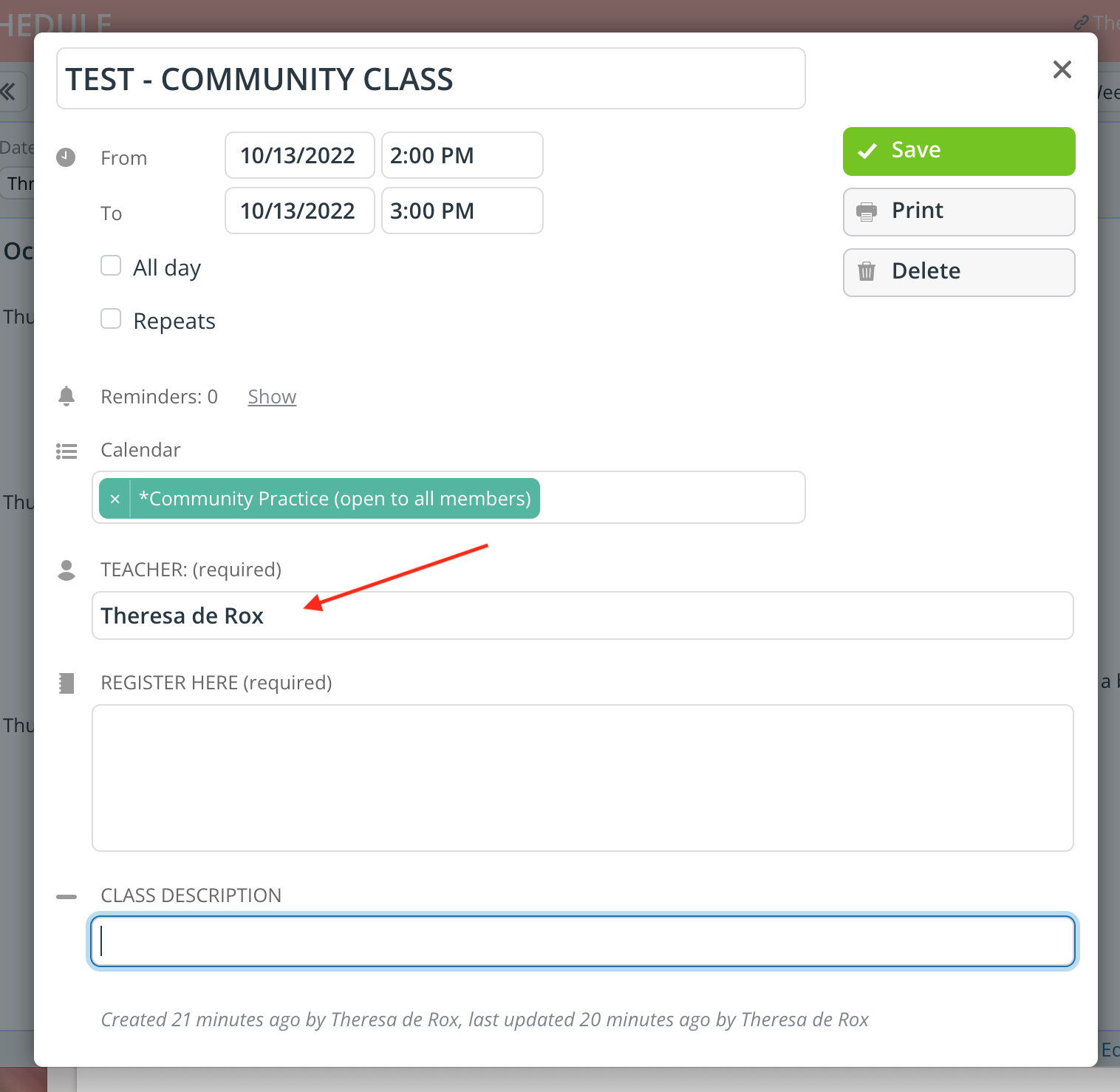
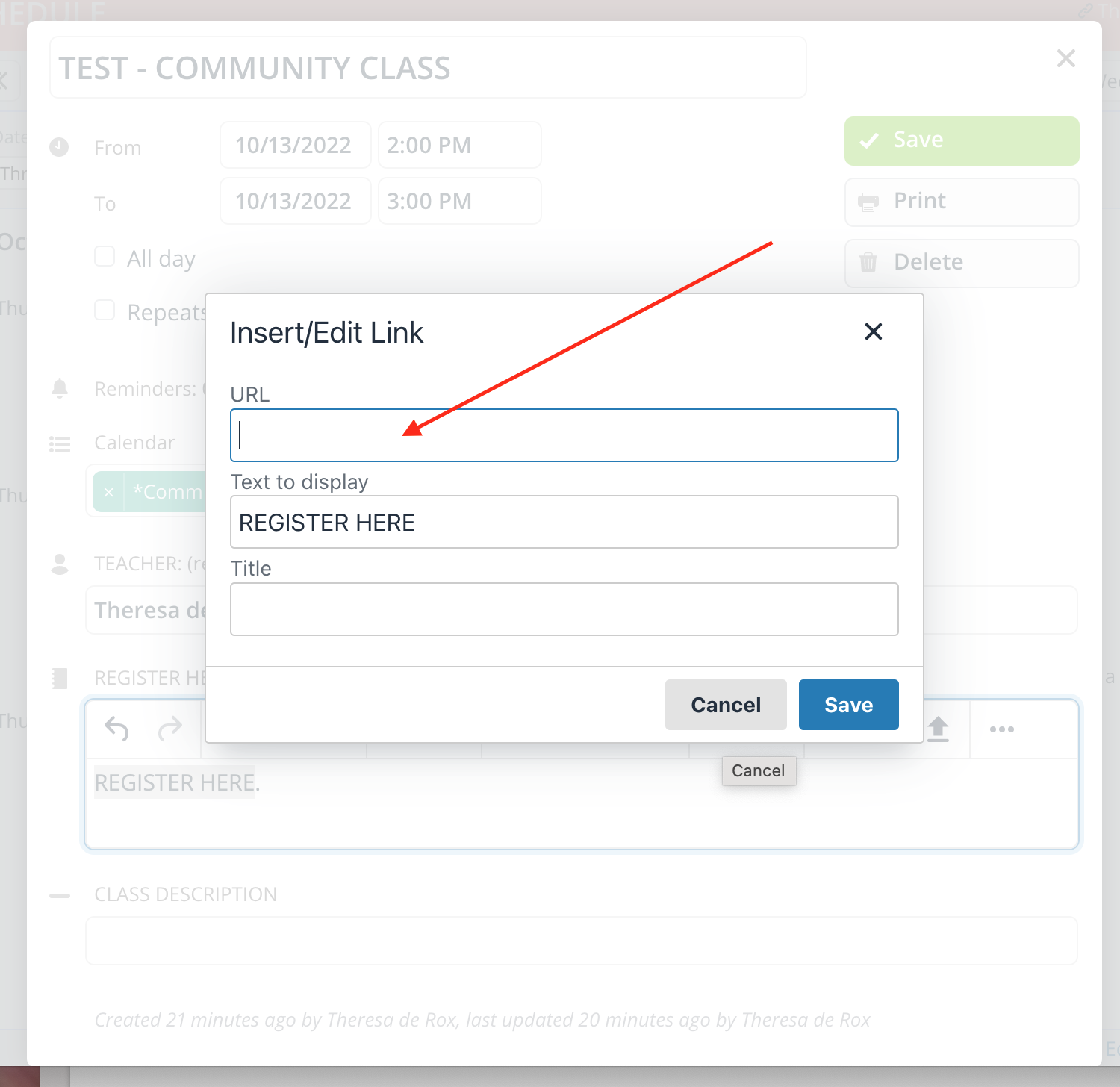
6. In the REGISTER HERE field please insert the words and then select the text to add the hyperlink.
Please ensure that you have already created a zoom account. Your zoom account CAN be the free version, if that is what you are already using - but remember your class will be limited to 40 min.
The hyper link should lead to your unique zoom account.
IMAGE 6
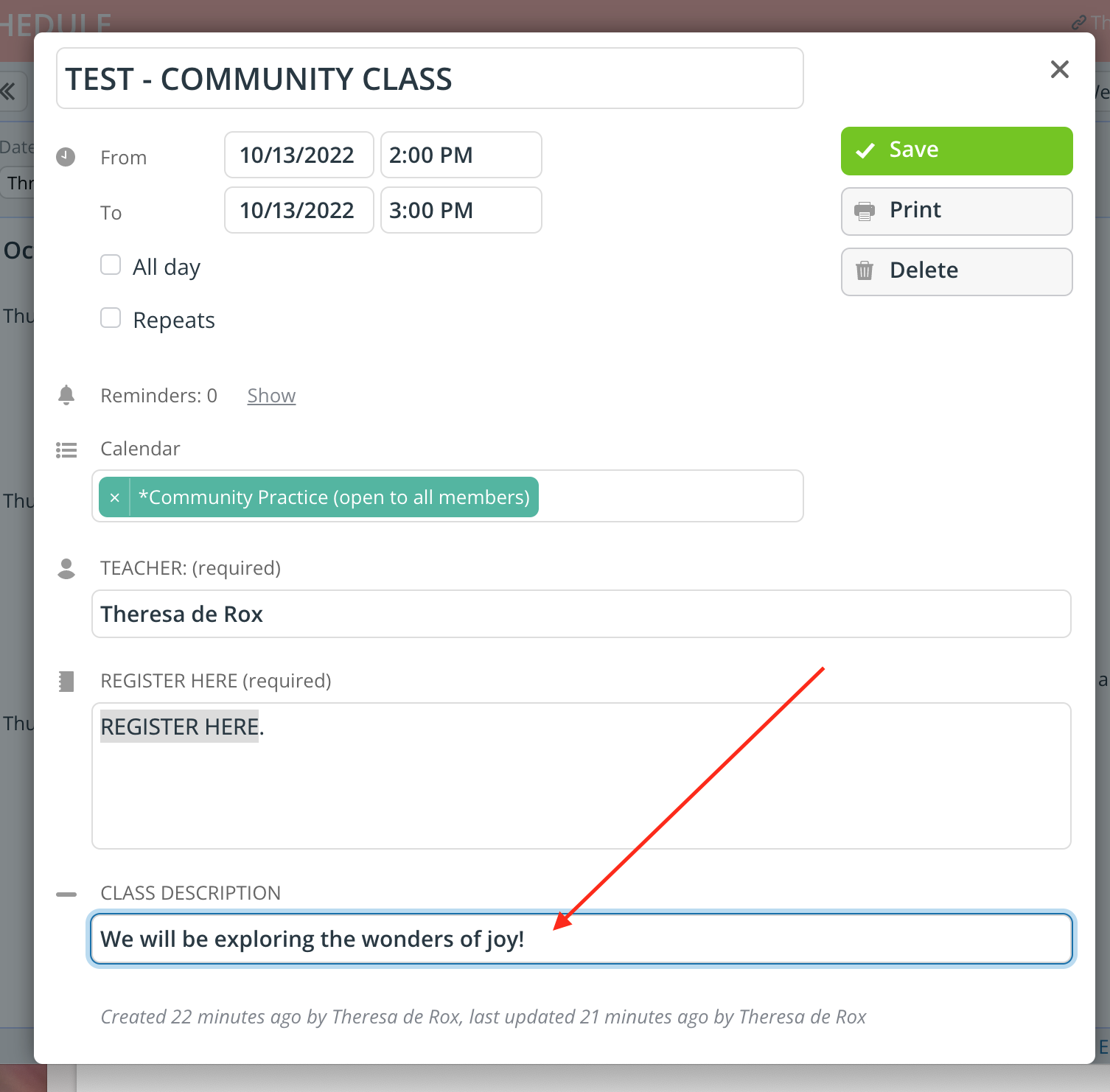
7. CLASS DESCRIPTION
This does not have to be fancy. It does offer some insight into what you will be exploring during your class session.
IMAGE 7
8. CLICK the SAVE BUTTON.
When you click SAVE, the community calendar will automatically update, but if you do NOT see your class on the calendar - please check the dates/times.
If you need to go back and change something, simply click on the Event Title, and it will bring you back to the pop-up window so you can make the necessary changes.
IMAGE 8A
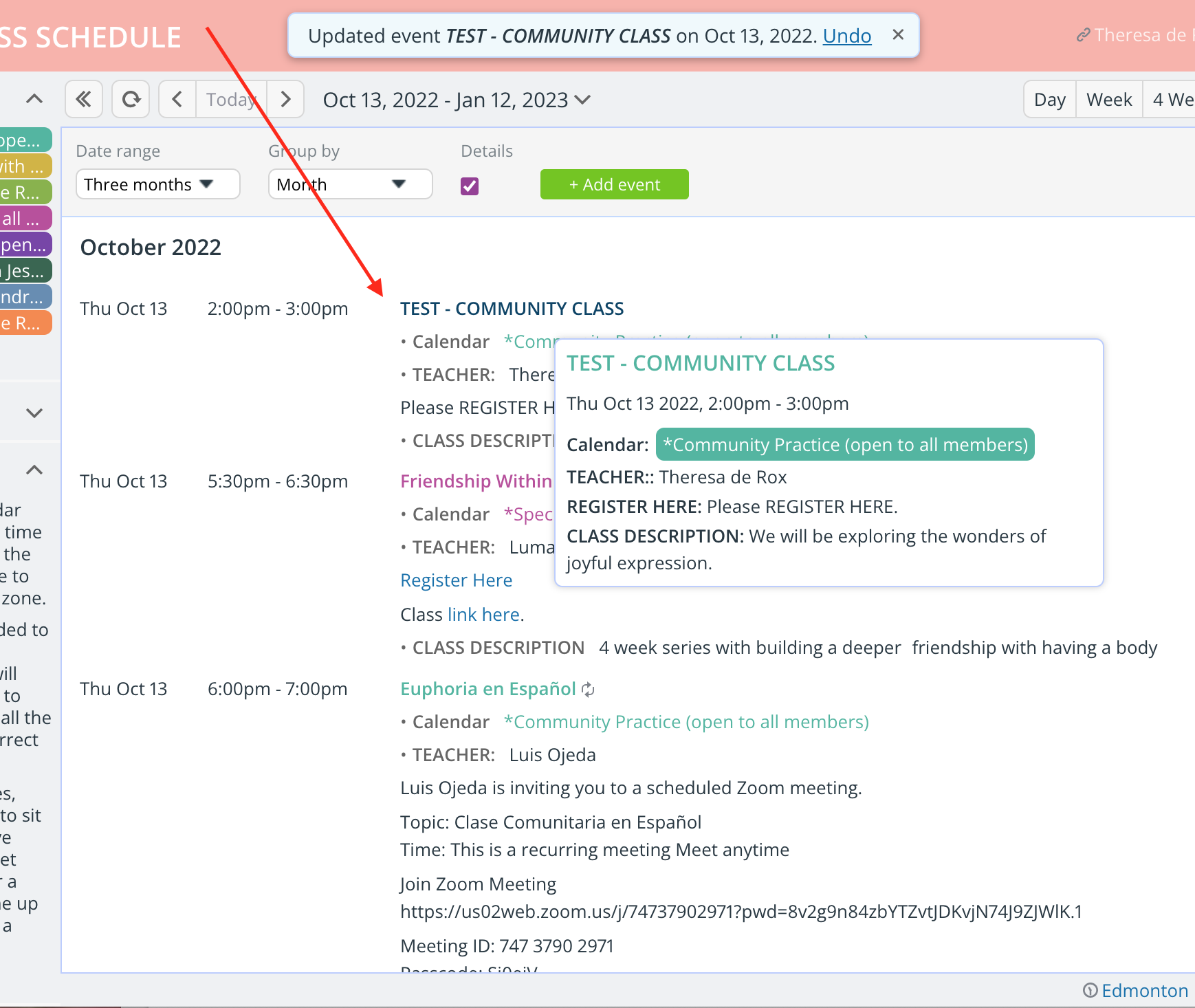
IMAGE 8B - After changes, click SAVE again.
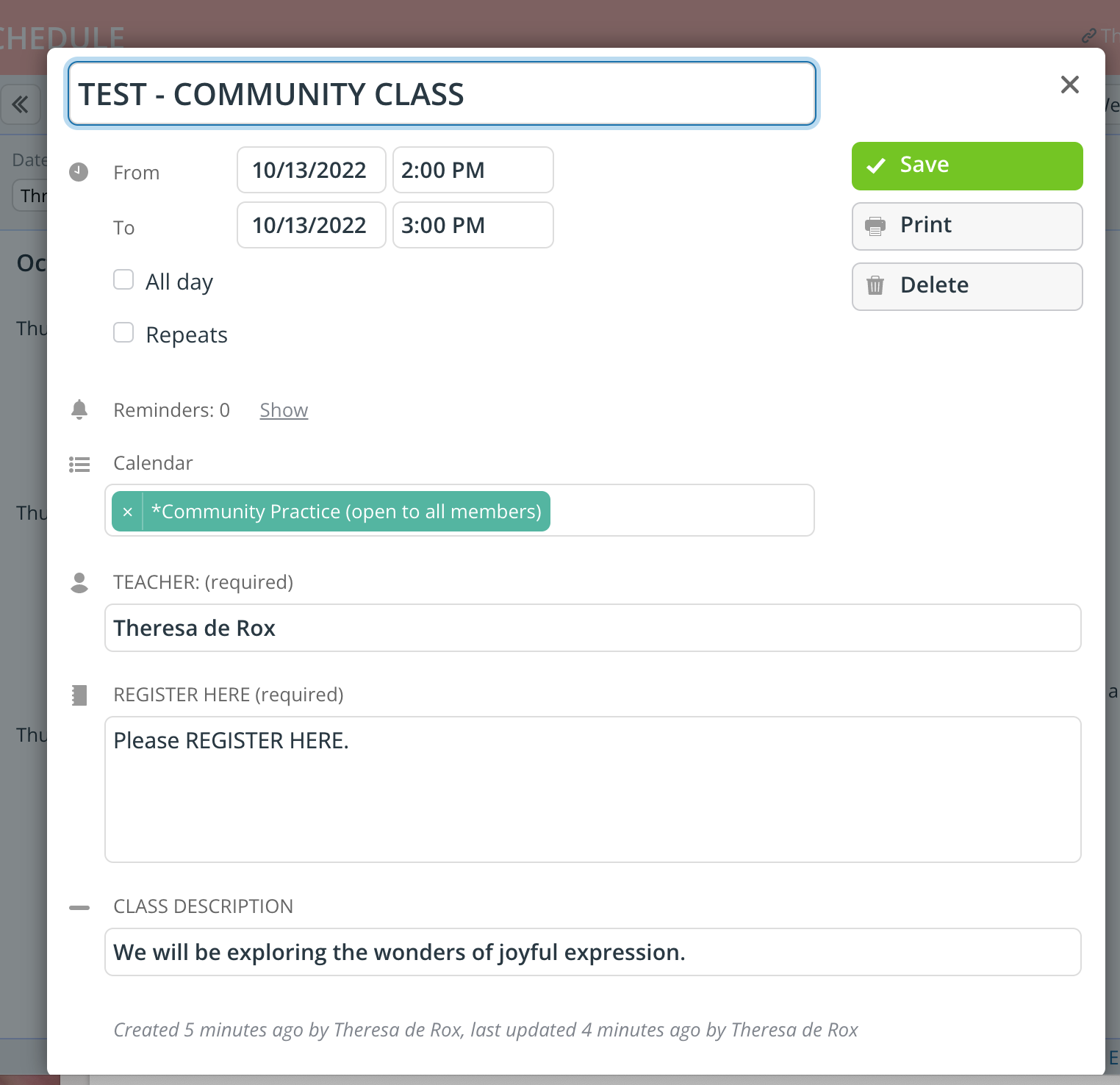
9. VOILÁ
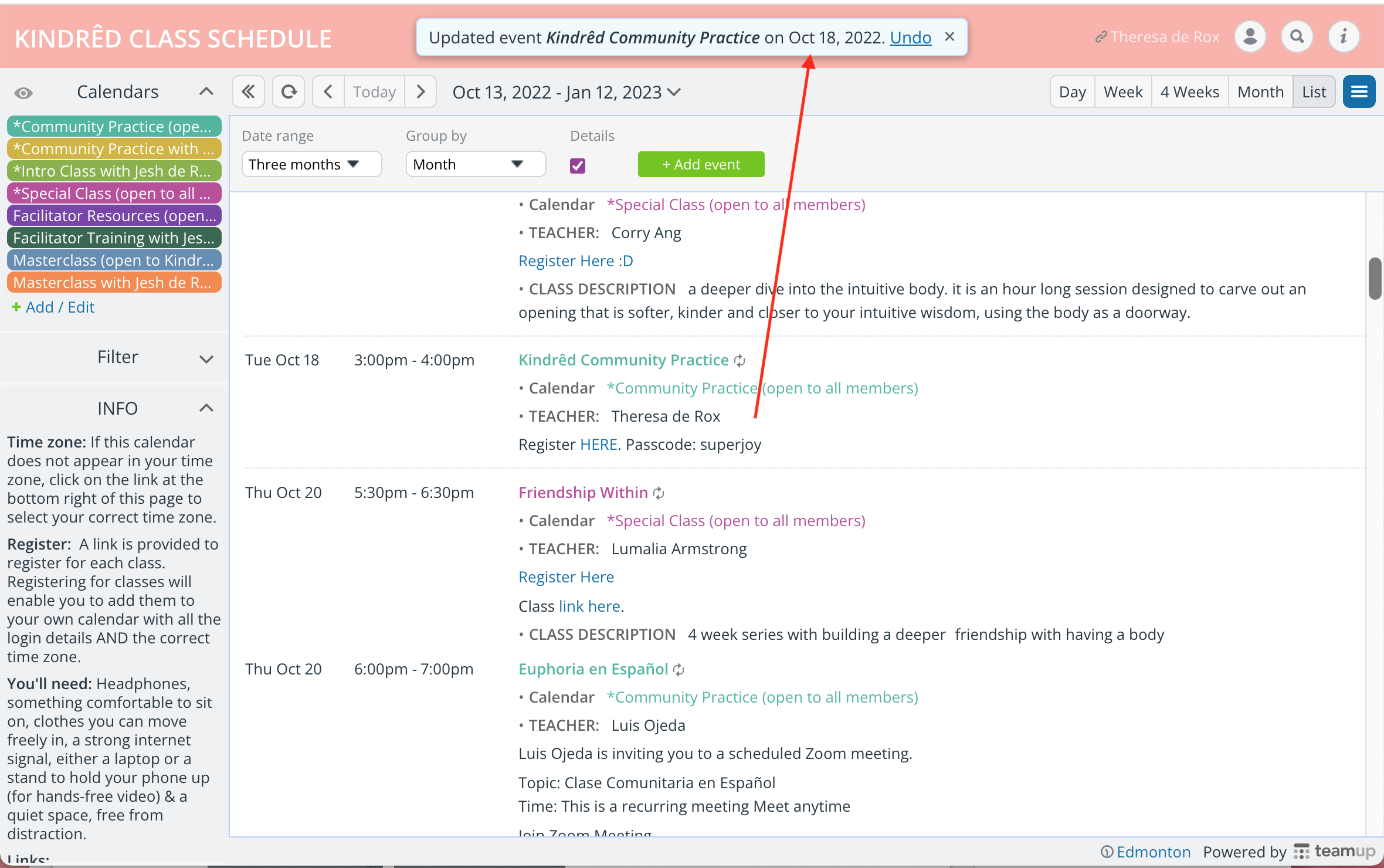
I would suggest going back to your class entry and checking the links. You can do so directly from the calendar. You might need to refresh your screen.
You can see that I updated another of my classes. The popup will let you undo any changes - in case they were made in error.
IMAGE 9
NOW ADD ANOTHER CLASS, AND ANOTHER!
And invite as many people, friends, family, strangers, as you can. The more the merrier!! ☺